
How to Extract a High-Quality Frame from a Video

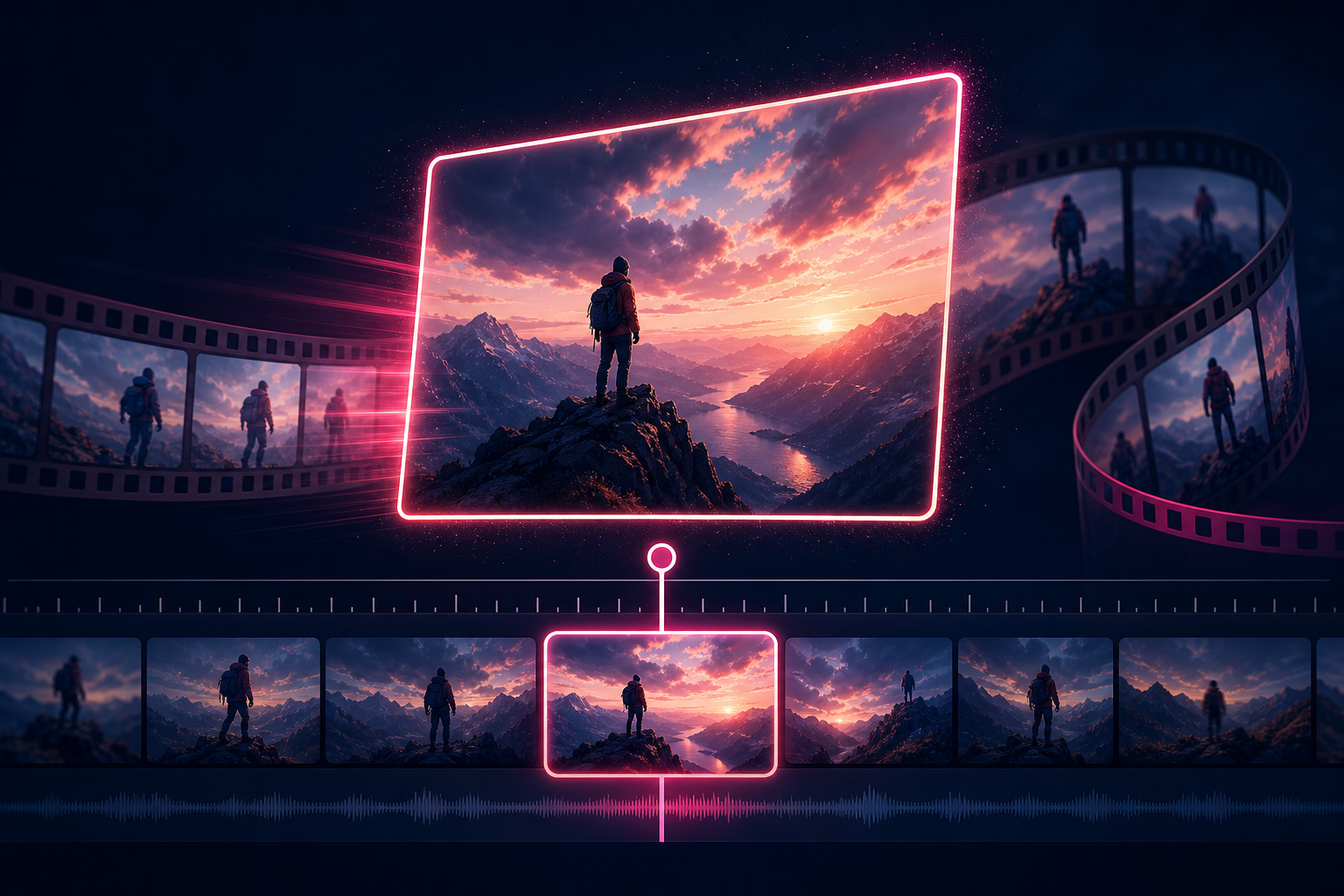
Video timeline with one sharp still extracted as a full-resolution photo
A phone clip or AI render often has one usable still buried inside it. You want that frame sharp, full size, and saved as a normal image file. This guide walks through extracting a high-quality frame from video without taking a fuzzy screen screenshot.
Quick answer: Use a video frame extractor that captures the decoded frame at native resolution. Scrub to the moment, step with previous/next frame, then download JPG, PNG or WebP. Prefer browser-local tools when you do not want the file uploaded.
Ready to extract? Open the free Video Frame Extractor — no sign-up before download.
Why is a decoded frame better than a screenshot?
Screenshots grab whatever is on screen. That usually means a scaled preview, player controls, and whatever DPI your display is using. Extracting a frame copies pixels from the decoded video buffer at the file’s real width and height. For AI character references and thumbnails, that difference shows up immediately.
How do you extract one exact frame?
- Open the Video Frame Extractor.
- Select an MP4, MOV or WebM your browser can play (H.264 MP4 is the safest default).
- Scrub the timeline or type a timestamp such as
00:01:24.350. - Use Previous frame / Next frame (or arrow keys) to land on the sharpest nearby sample.
- Pick JPG, PNG or WebP and capture the frame.
Note- Browser seeking is not a film scanner. Variable frame rate and some codecs can land a hair off your typed time. Stepping frames is how you finish the job.
How do you keep resolution and quality?
Leave the export at the video’s native size. The tool does not downscale to the preview box. If the source is soft, no export format will invent detail. For photographic stills I usually start with JPG around 90% quality; for UI or text-heavy frames I switch to PNG in the Video Frame Extractor.
How do you pull several frames at once?
Switch to multiple-frame mode when you need a sequence every N seconds or a fixed count across a range. Download a ZIP; filenames include timestamps so you can sort them later. For thumbnail hunting specifically, use thumbnail finder instead of guessing one timestamp.
What should you do after you download the still?
Keep the free download first. Then, if the still is for generative work:
- Animate the frame
- Generate another camera angle
- Train or reuse it as a character reference
- Open a storyboard contact sheet for review
Browse more utilities on the video tools hub.
What limits should you expect?
Codec support depends on the browser. A .mov wrapper with an unsupported codec will fail even when the extension looks fine. Very long interval jobs are capped so the tab does not run out of memory. This flow also will not isolate dialogue or remove music — that is a different audio task.
Thats the practical path I use when I need a clean still from a clip. If something fails on a specific file type, tell me which browser and container you tried.
Cheers!