Tutorials
AI clips where your main person stays the same | TheFluxTrain

One of the most visually satisfying effects in short-form videos is when the character remains the same while the background keeps changing with every beat. You may have seen these transitions in reels where someone walks or performs an action, and suddenly they appear in completely different environments — a city, a desert, a cyberpunk street, or even outer space.
The reel above shows exactly what we're aiming for: the bottom video is the reference action recorded by you, and the top video shows the AI-generated transitions where the character stays consistent but the environment shifts.
In this tutorial, I’ll show you how to create this effect using AI tools. The process is simple and relies on motion transfer and background generation. For this tutorial, I will be using TheFluxTrain to access different AI tools.
I’ll also be attaching screenshots throughout the tutorial so you can follow along easily.
Step 1: Record a Base Video of the Action
First, you need a reference video containing the action you want to replicate.
This could be something simple like:
- walking
- turning around
- throwing an object
- jumping
- dancing
The important thing is that the action remains consistent, because this motion will later be transferred onto different images.
You can record this video yourself using a phone camera.
In my case, I created an AI video of myself sipping coffee in a lounge.
If recording is difficult — for example, if the action is complex — you can also generate an AI version of yourself and create the video using AI tools.
If you want to create your own avatar first, follow this guide: Noobs guide to Flux LoRA training.
Once you have the video, this will serve as the motion reference for the entire process.
You can use either of these two approaches for Step 1:
- Real reference shot: record the motion yourself.
- AI-generated reference shot: generate the same kind of motion using AI if recording is not practical.
Caption: Left is the real recorded reference shot; right is the AI-generated reference shot as an alternative when recording is not practical.
Step 2: Extract the First Frame and Generate Background Variations
If you are using your own recorded video, use the Frame Grabber tool in TheFluxTrain to capture a frame from your reference video.
If you are using an AI-generated reference shot, use the original image as the base image to create new frames with different backgrounds.
Caption: Use TheFluxTrain Frame Grabber only when working with your own recorded video, and capture the first frame.
This image will act as the base image where the character remains consistent.
Upload this screenshot to NanoBanana Pro in TheFluxTrain.
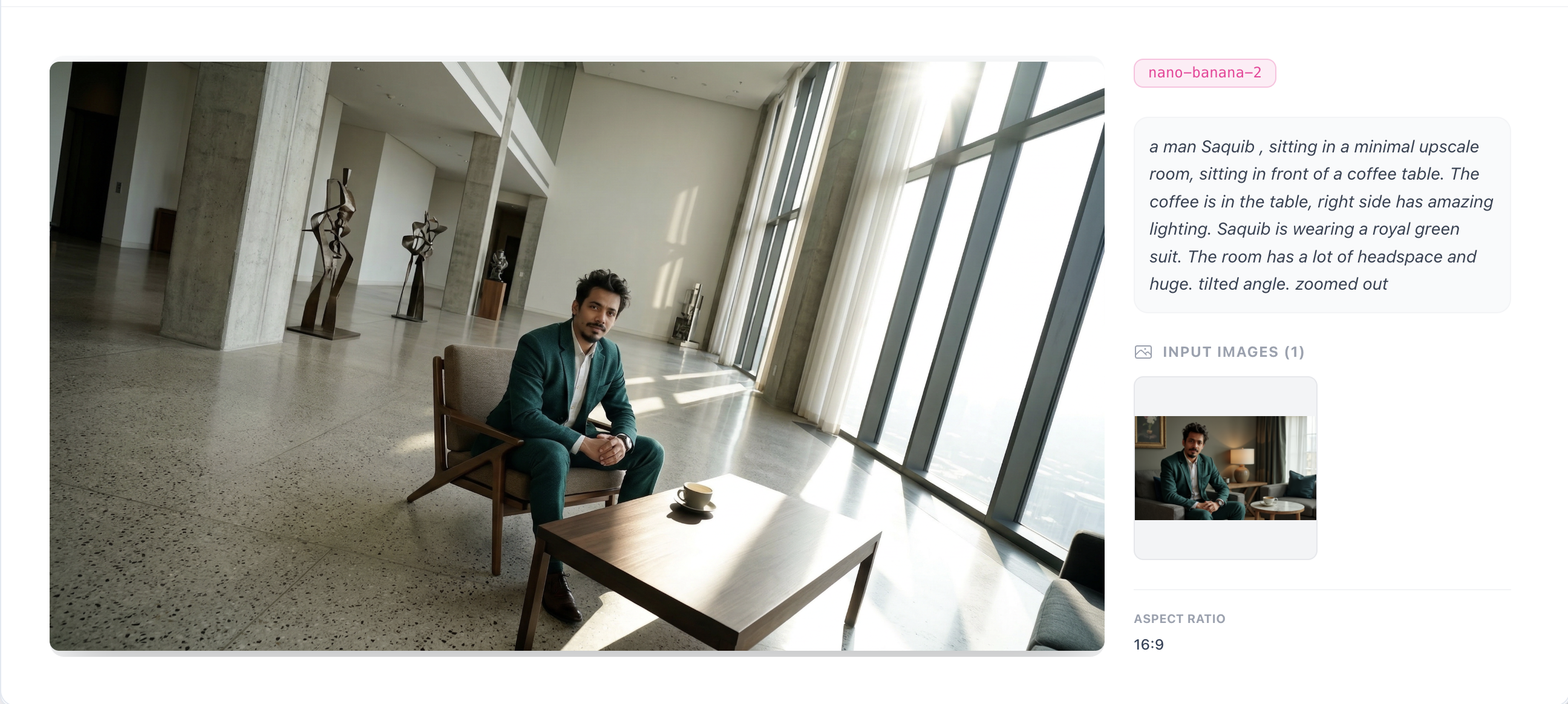
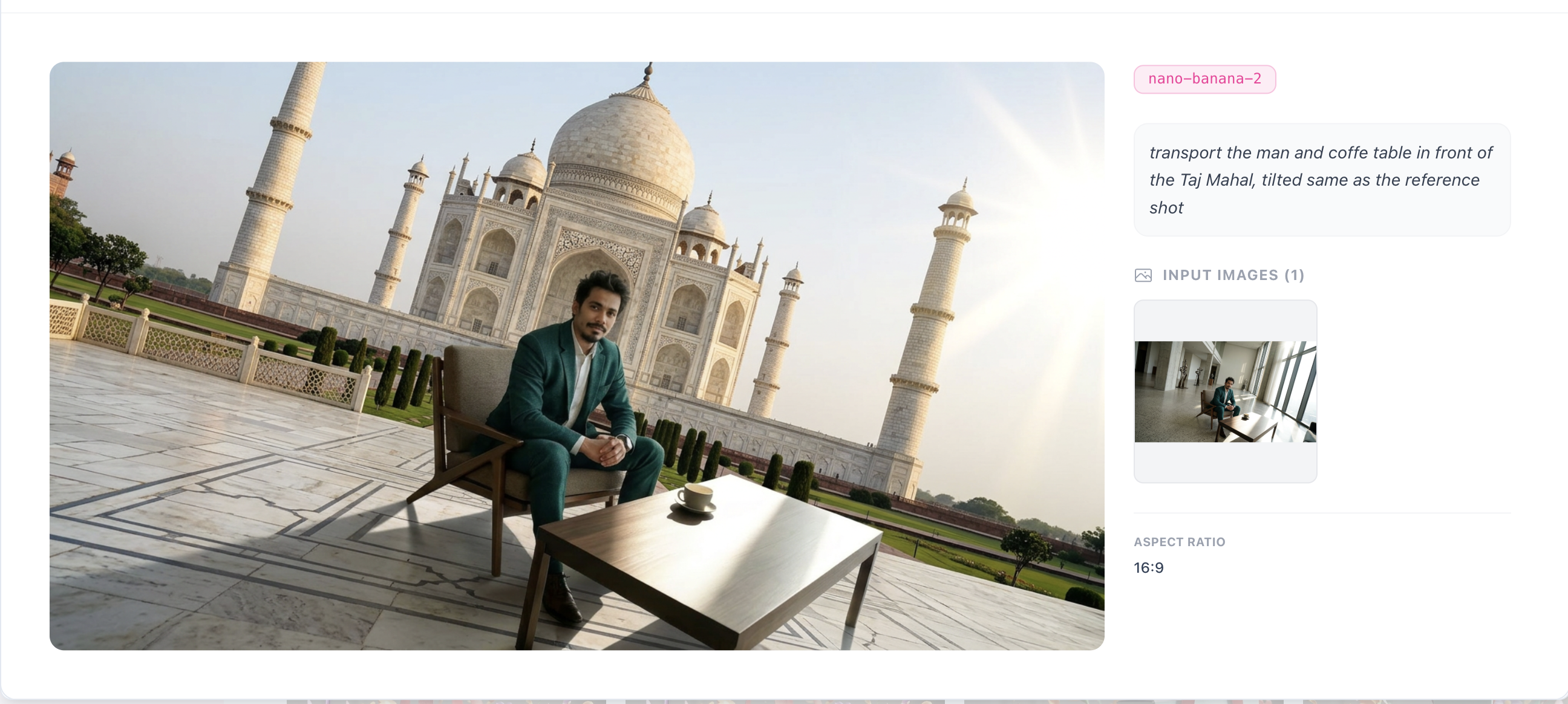
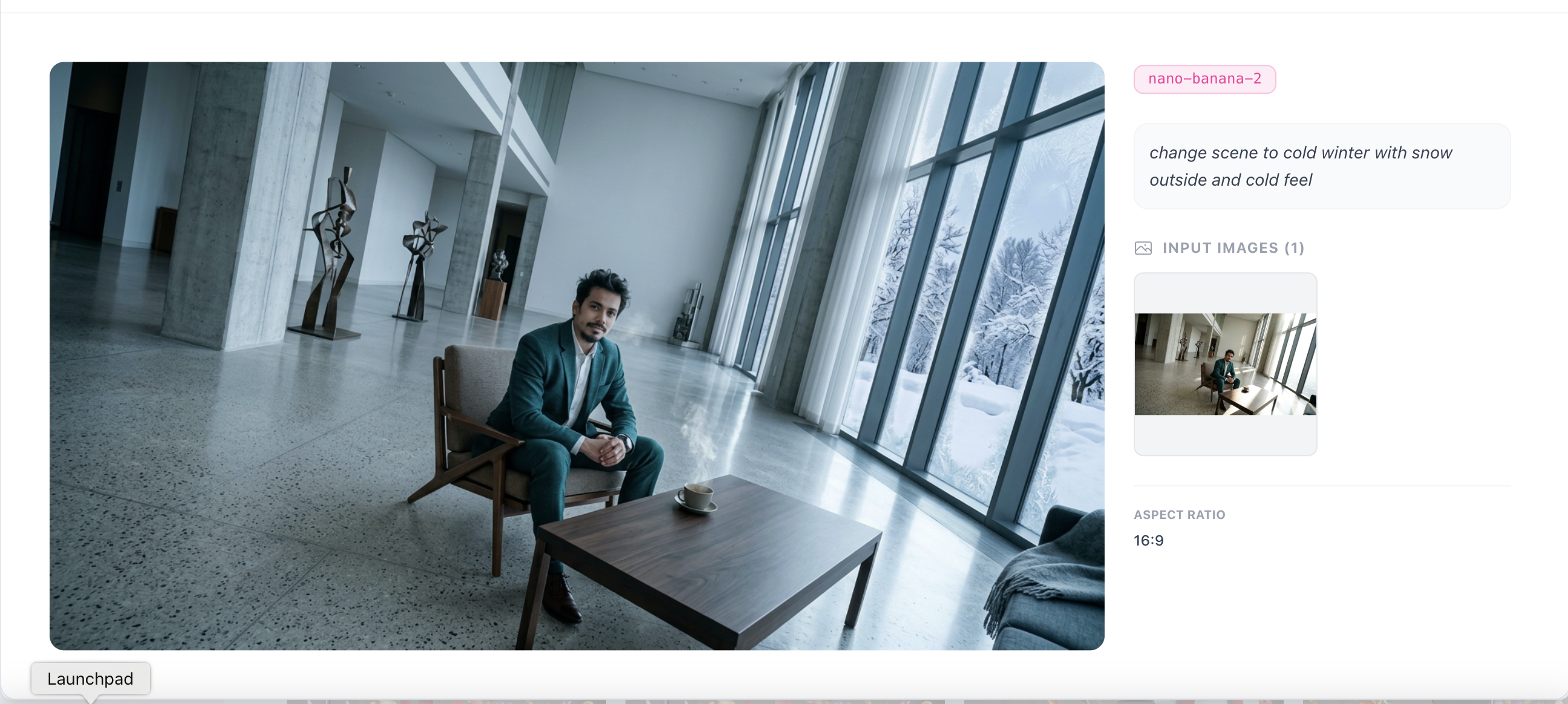
Now use the background replacement feature and describe the new background you want, while explicitly telling the AI to keep the character exactly the same.
You can prompt the AI to create various settings such as:
- a futuristic cyberpunk street
- a snowy mountain landscape
- a neon-lit Tokyo alley
- a desert during sunset
- a medieval castle courtyard
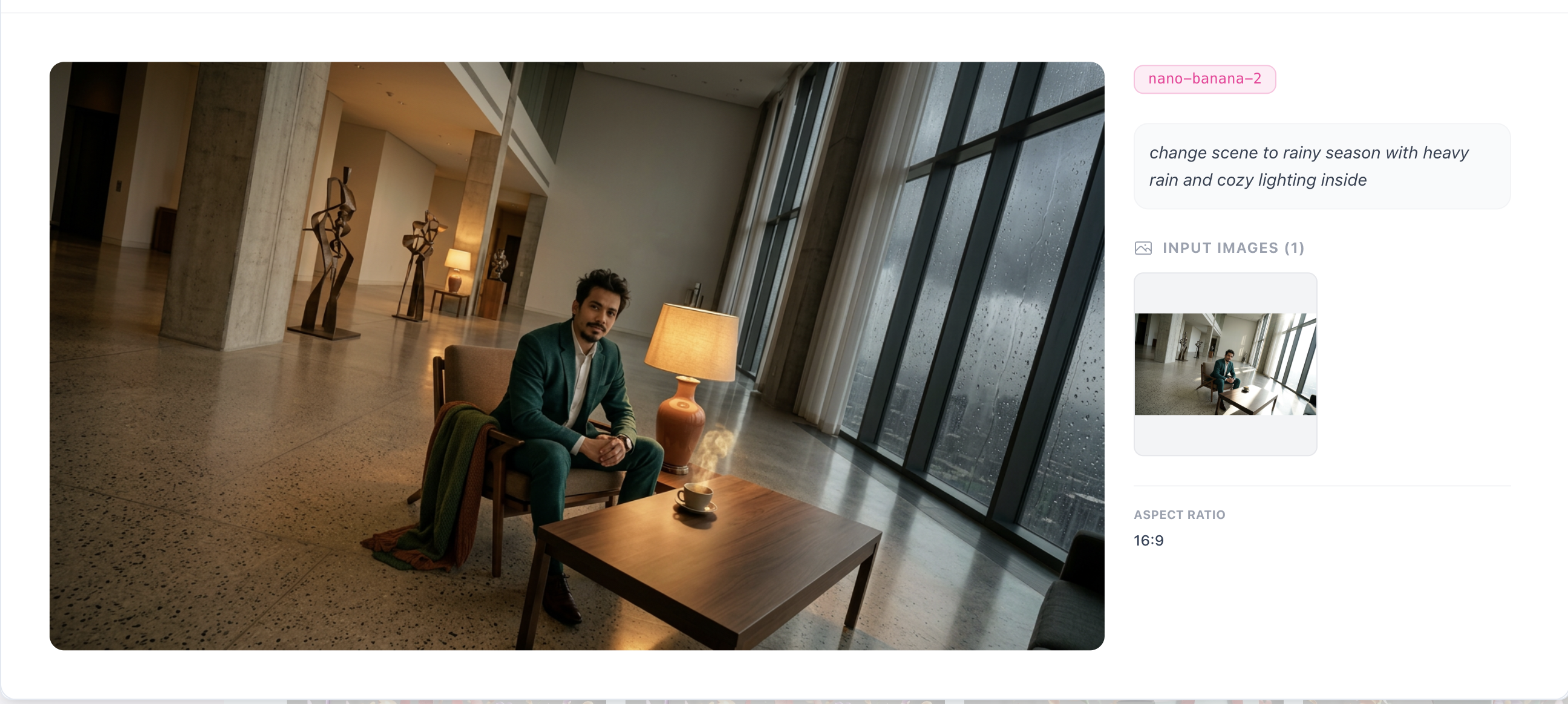
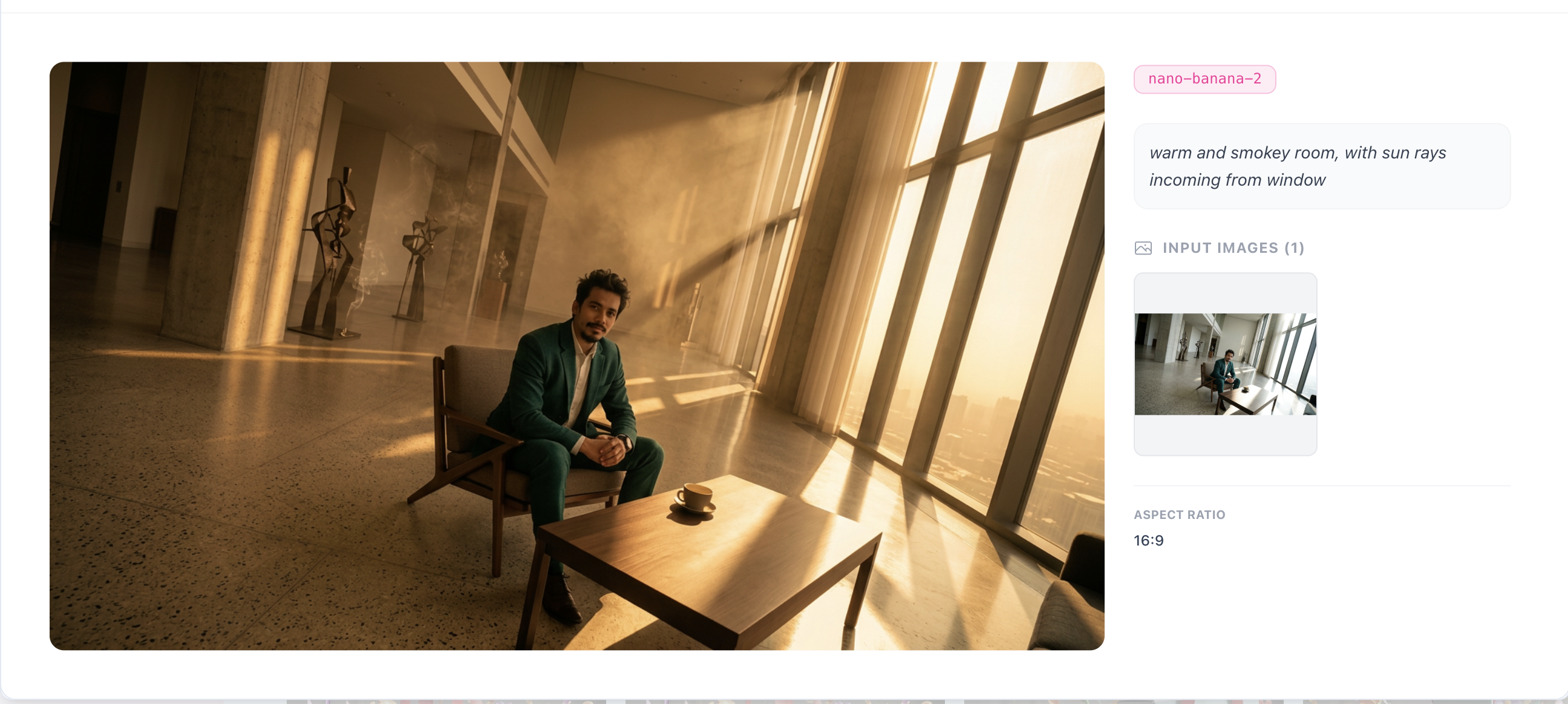
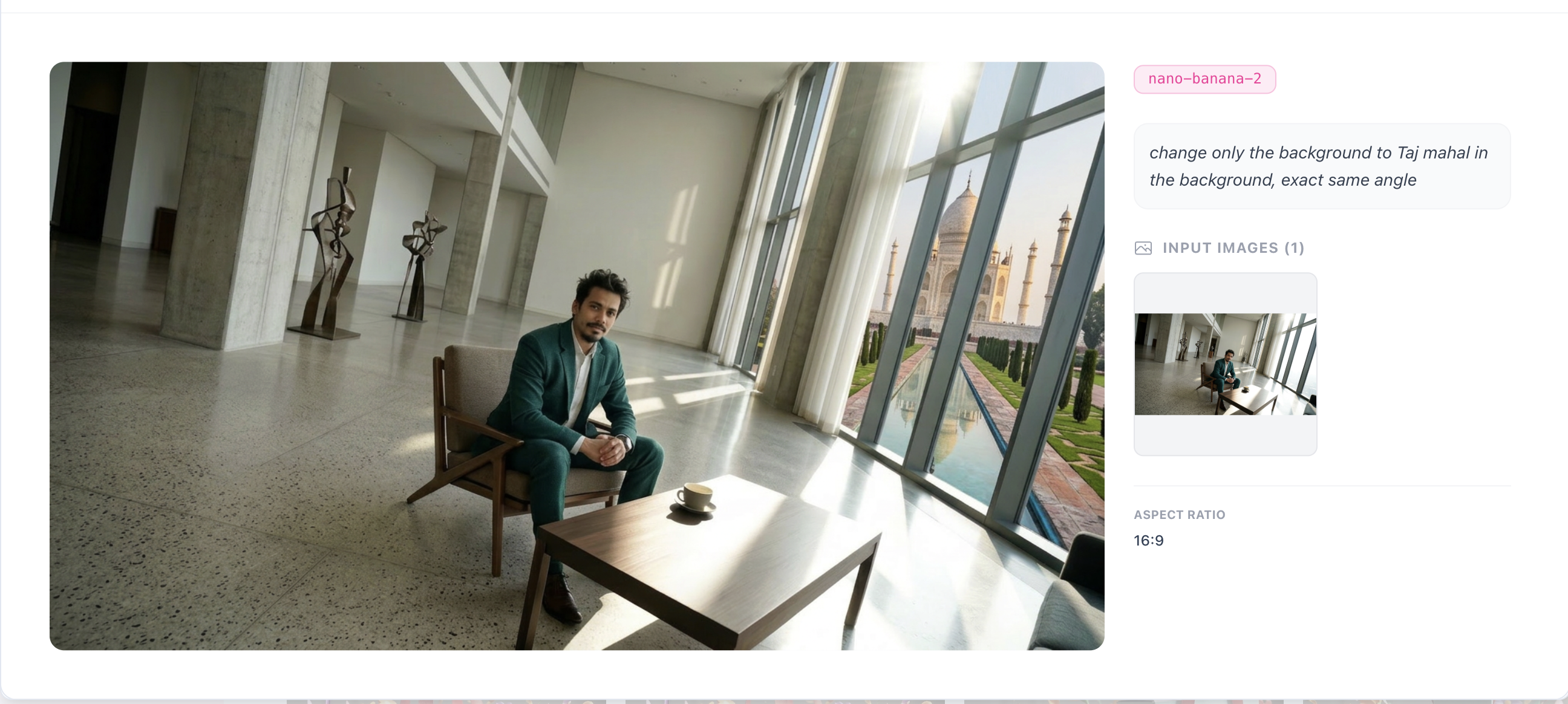
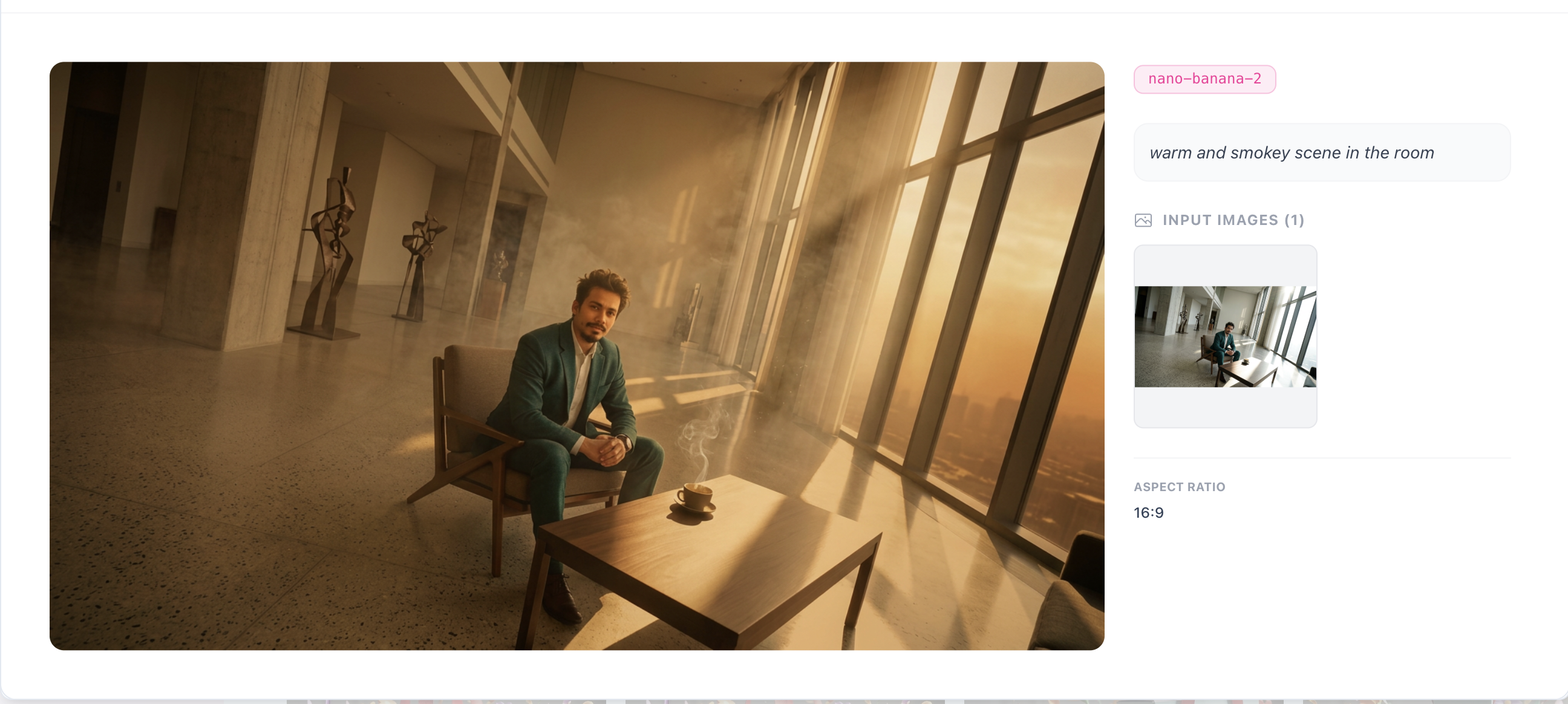
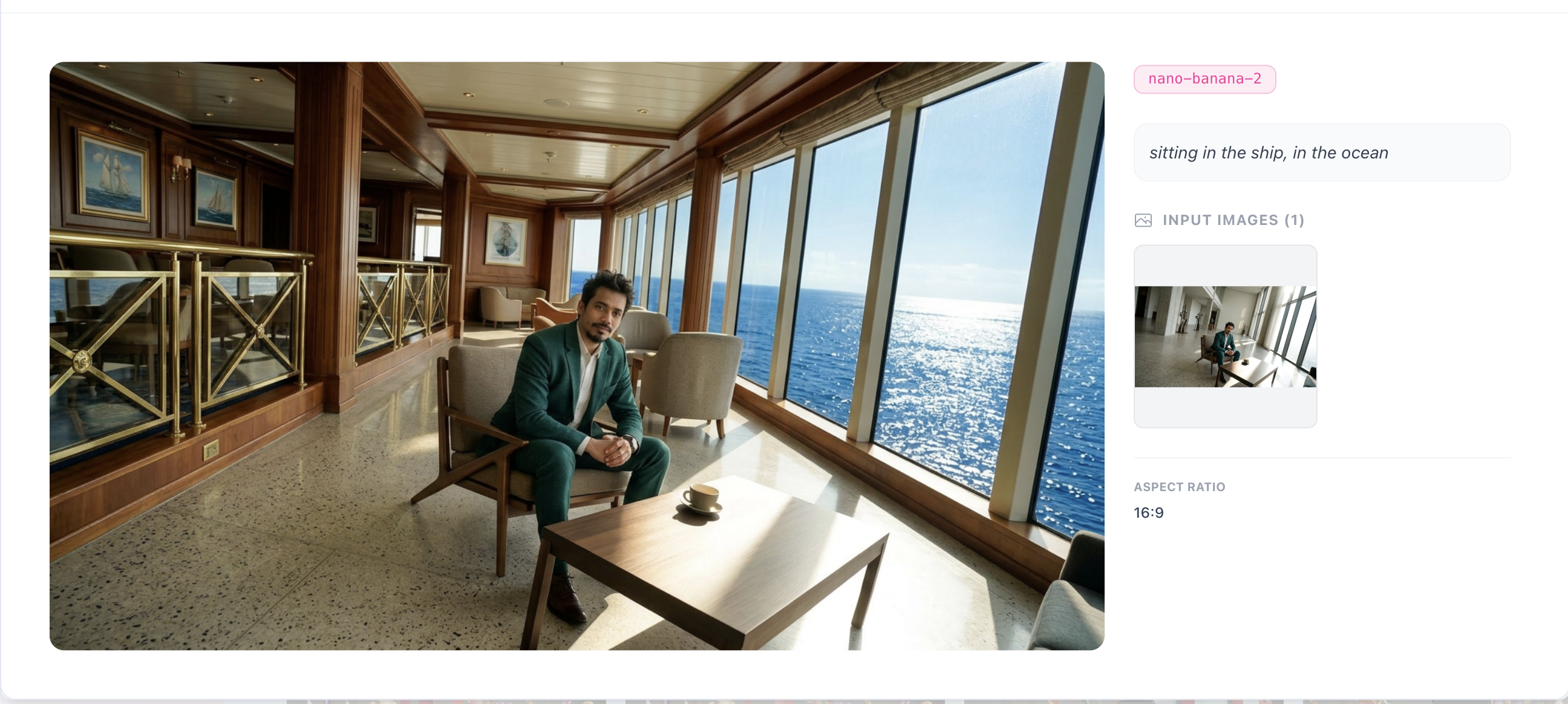
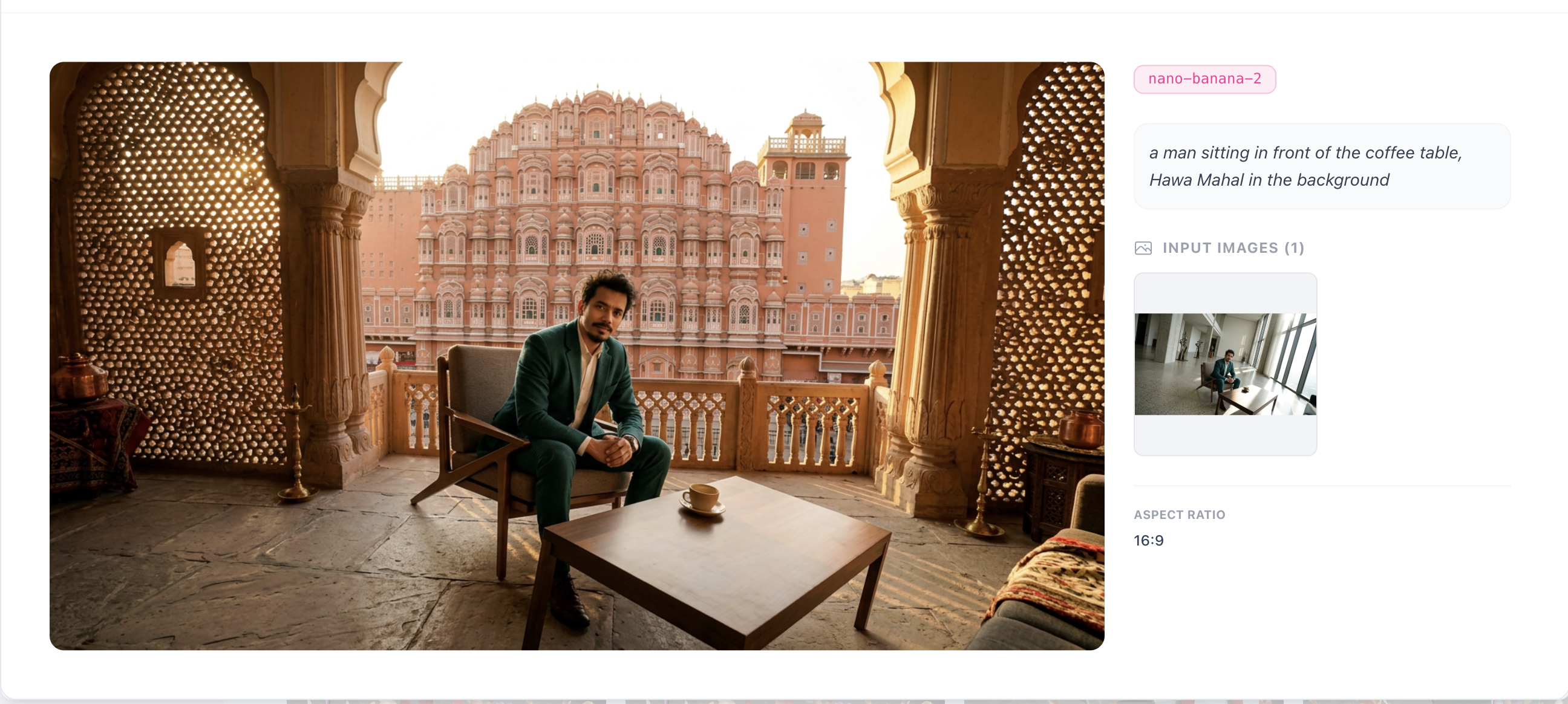
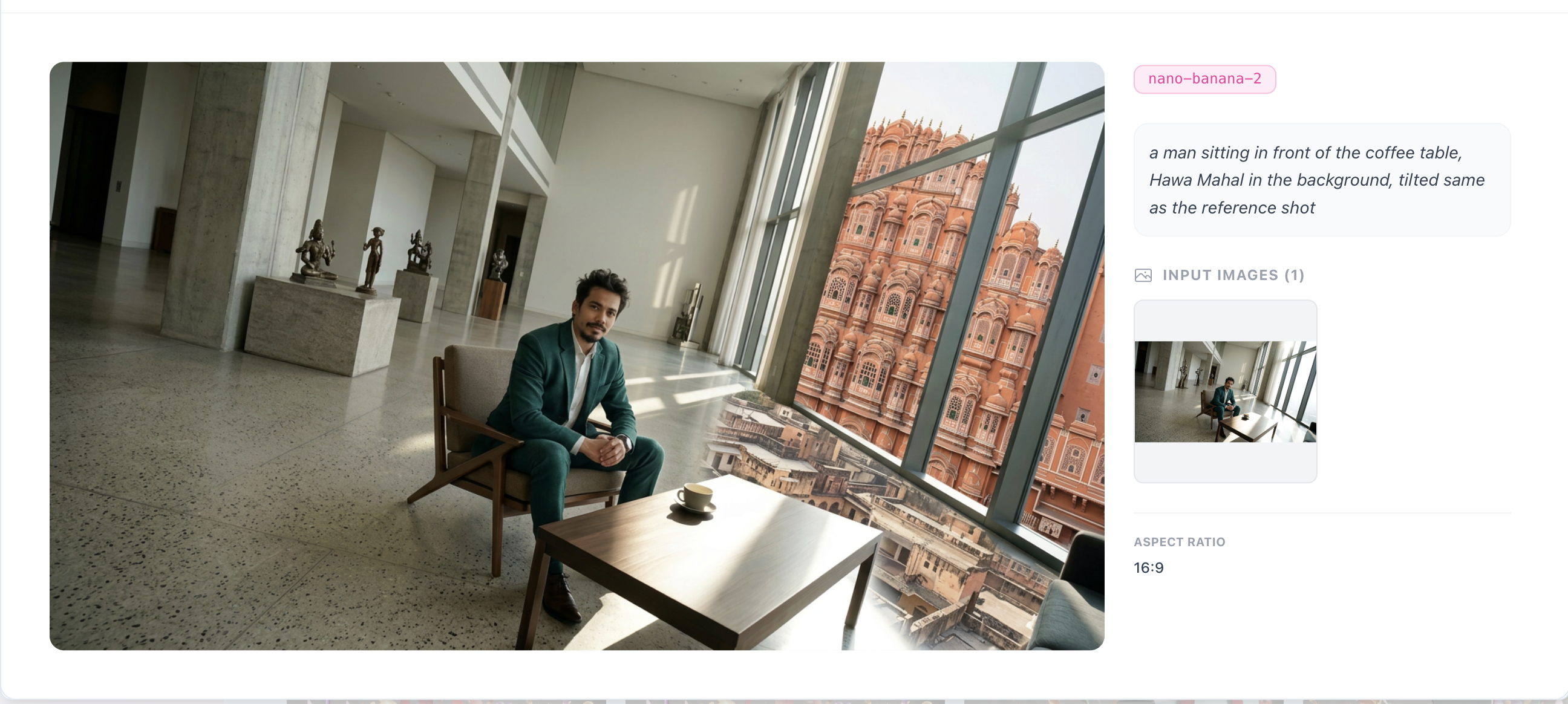
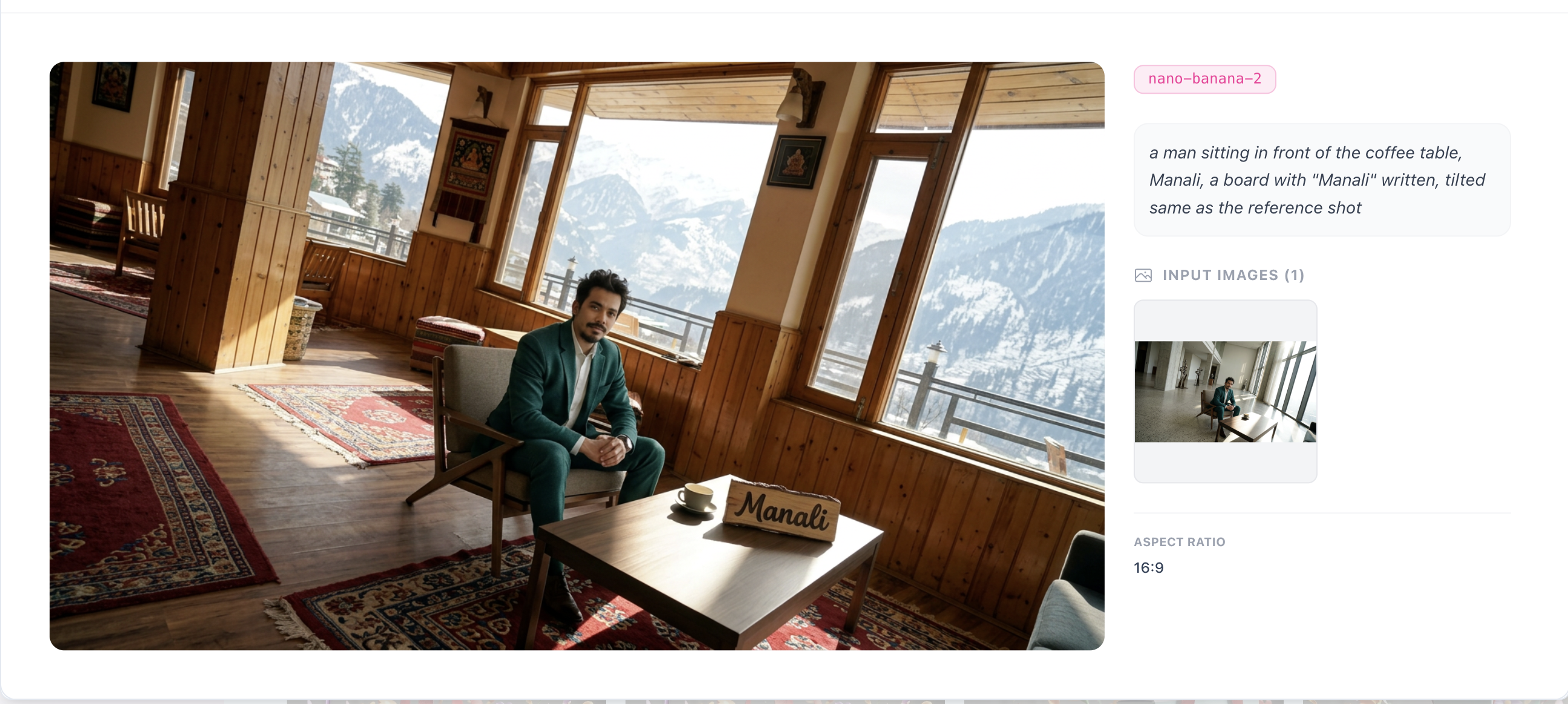
In my case, I generated 11 images with different backgrounds.
You can also use reference images to copy a specific style if you want a consistent aesthetic across all scenes.
Before generating all variants, use this mini workflow:
- Start with one test prompt and verify the character identity is preserved.
- Use a strict line in every prompt:
keep the same character exactly, do not change face, hair, body, outfit, pose, or camera angle. - Always use the first base image as the reference image for every new background to avoid identity drift.
- Change only the background description between generations.
- Generate one image at a time, review it, then move to the next background.
The gallery below shows the generated background along with the prompt used.
Step 3: Transfer Motion to the Generated Images
Now that you have multiple images with different backgrounds, the next step is to animate them using motion apply.
Go to Motion Apply in TheFluxTrain.
Here’s what you need to do:
- Upload the reference video (the one you recorded in Step 1).
- Upload one of the generated images from NanoBanana.
- The system will transfer the motion from the video onto the image.
This means the character will perform the same action, but now inside the new background.
Click Generate, and the system will produce a short video.
Repeat this process for each generated image.
By the end of this step, you’ll have multiple short video clips, each with the same action but a completely different environment.
Caption: Left shows TheFluxTrain Motion Apply setup and generation flow; right shows a resulting output clip created from one background image.
Step 4: Create Beat-Based Transitions in a Video Editor
Now comes the fun part — editing the clips together to create impactful transitions.
Import all the generated videos into your favorite video editing software. This could be:
- Premiere Pro
- Final Cut Pro
- CapCut
- DaVinci Resolve
- After Effects
Place each video on the timeline in sequence.
Next, choose an energetic or interactive music track.
The goal is to cut the clips on the beat of the music.
Trim each video so that every background change happens exactly when the beat drops. This creates a powerful visual rhythm and makes the transitions feel intentional and impactful.
You can stack clips on multiple layers if needed and adjust timing until the transitions feel smooth.
Caption: Arranging generated clips on the timeline and aligning cuts to music beats for smooth transitions.
Future improvements/work
Once everything is aligned with the music, you’ll get a video where:
- The character performs the same action continuously
- The background changes dramatically at every beat
- The transitions feel smooth, rhythmic, and cinematic
This technique works extremely well for:
- Instagram Reels
- TikTok videos
- Music visuals
- Creative storytelling
- AI-generated commercials
This workflow combines three powerful ideas:
- AI background generation
- motion transfer
- beat-based editing
With just a single reference video, you can create dozens of visually rich scenes without ever changing the actual performance.
If you're experimenting with AI video creation, this technique is a great way to produce high-impact transitions with minimal effort.
And once you get comfortable with the process, you can start experimenting with styles, environments, and storytelling sequences to create even more engaging videos.