Noobs Guide to Generate Product Ad Creatives (Stills + Short Clips) with a Reusable Workflow

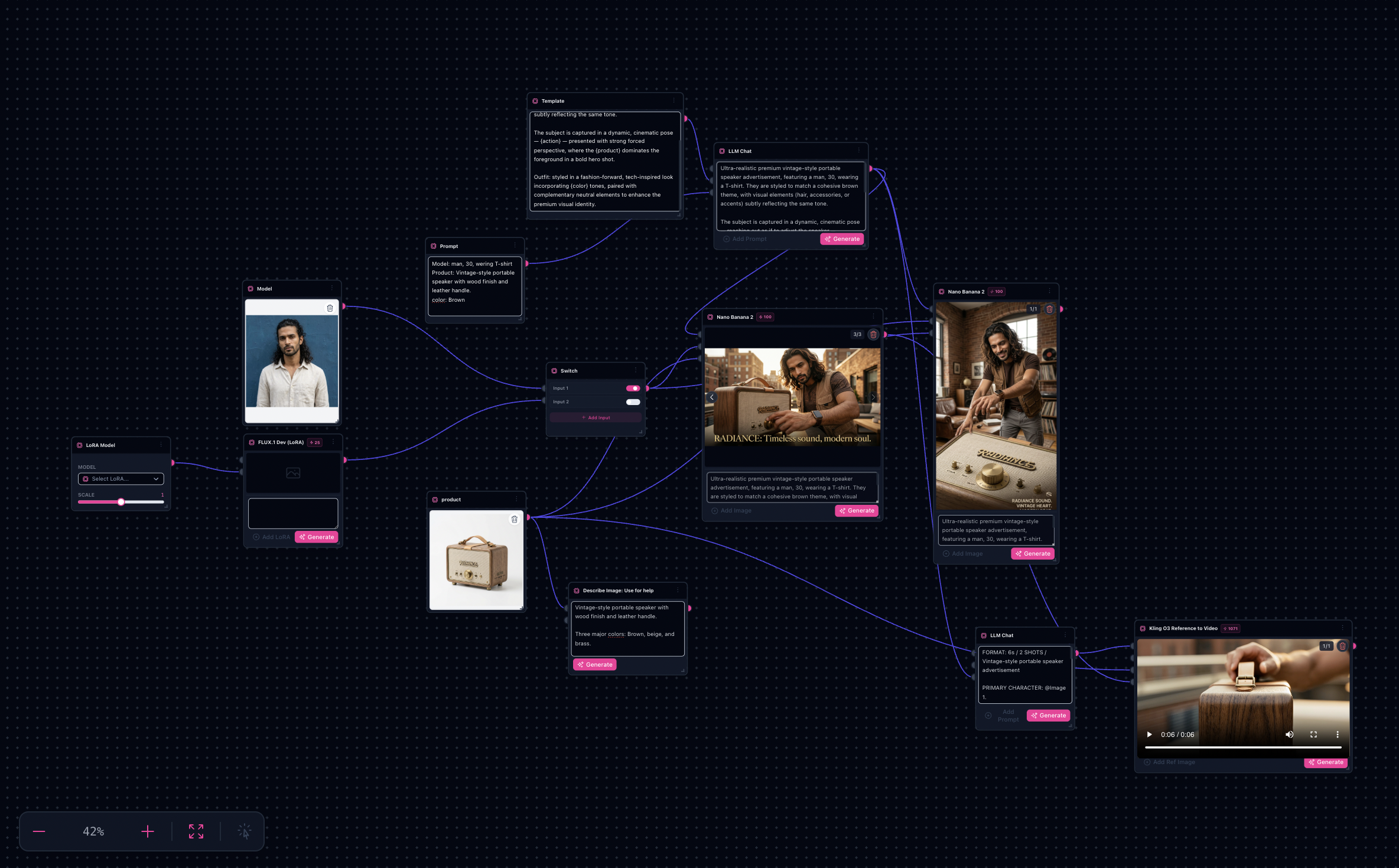
Product ad workflow sample output from the shipped Product Ad template
If you have ever tried to make “just 10 more ad creatives” from the same SKU, you know the trap: you rewrite the prompt each time, consistency drifts, and you end up with a folder that does not feel like one campaign.
This guide walks through a reusable workflow: one product photo, a short brief, multiple ad-ready stills, then optionally a short motion clip—all from the same template.
Quick answer: Open the Product Ad generator, swap in your SKU photo and brief, generate hero stills, rerun for aspect ratios or small action tweaks, then optionally export a short clip from the same references.
Try it: Open the Product Ad workflow
What you will need
- 1 product image (front or hero shot works best)
- Optional model or lifestyle reference if the ad includes a person
- A short brief: product name, color theme, one action, and target ratios (1:1, 9:16, 16:9)
Expect iteration on the first SKU. The goal is a workflow you can rerun for every product—not a perfect first generation.
The workflow in one sentence
Template prompt → fill with a brief → generate hero stills → rerun for aspect ratios → (optional) generate a short clip from the same references.
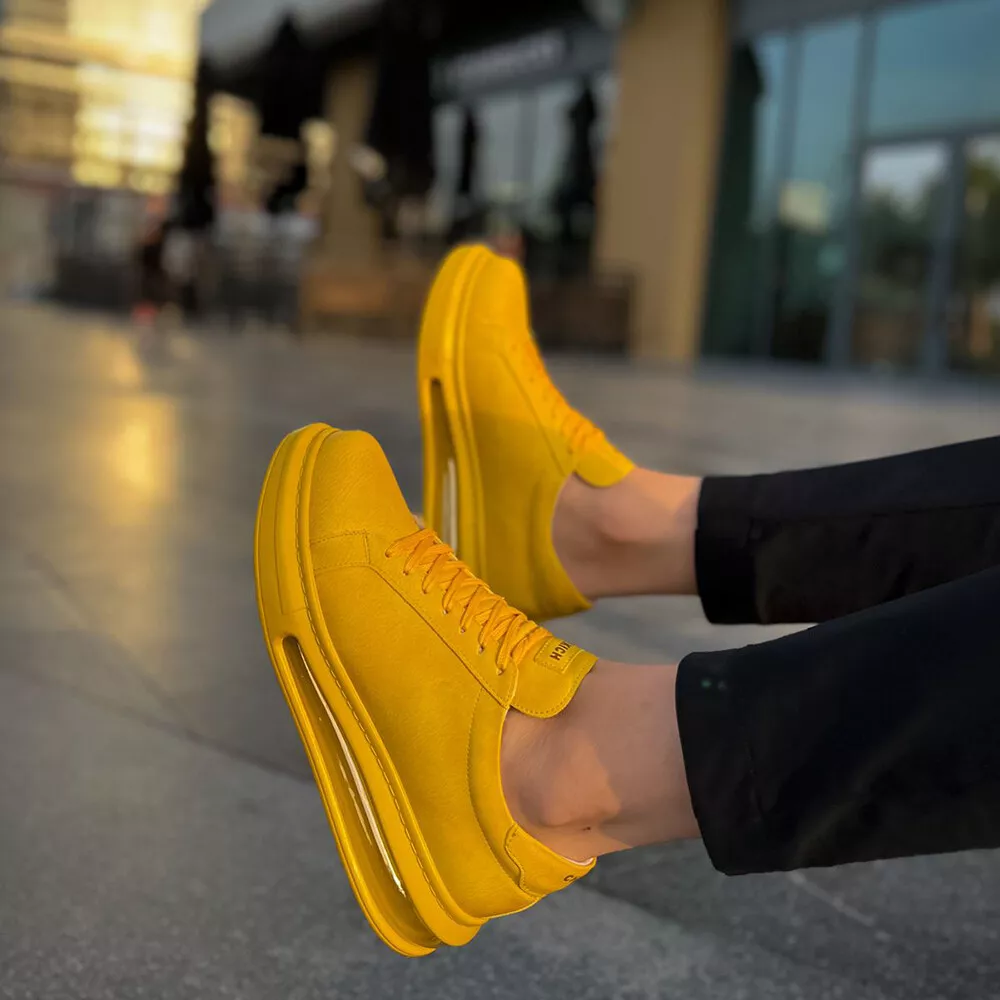
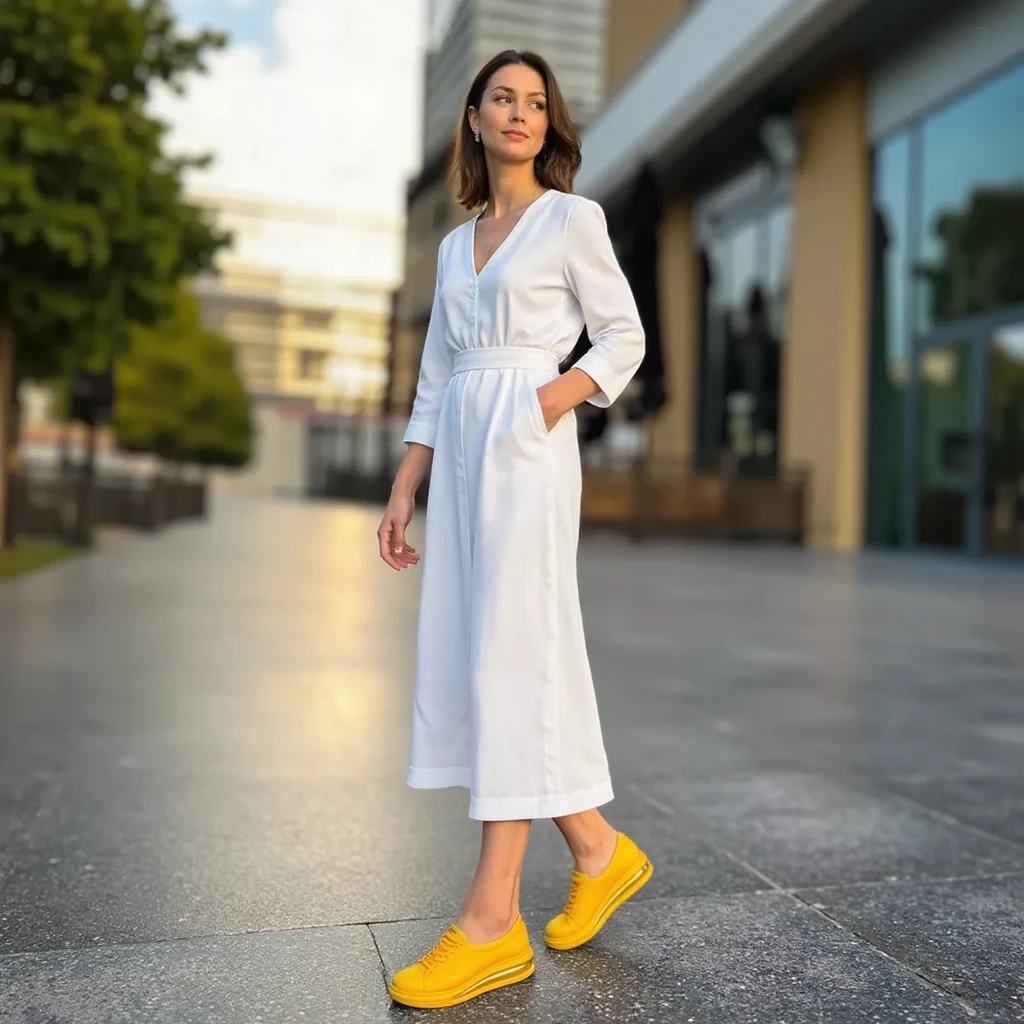
Sample inputs and outputs
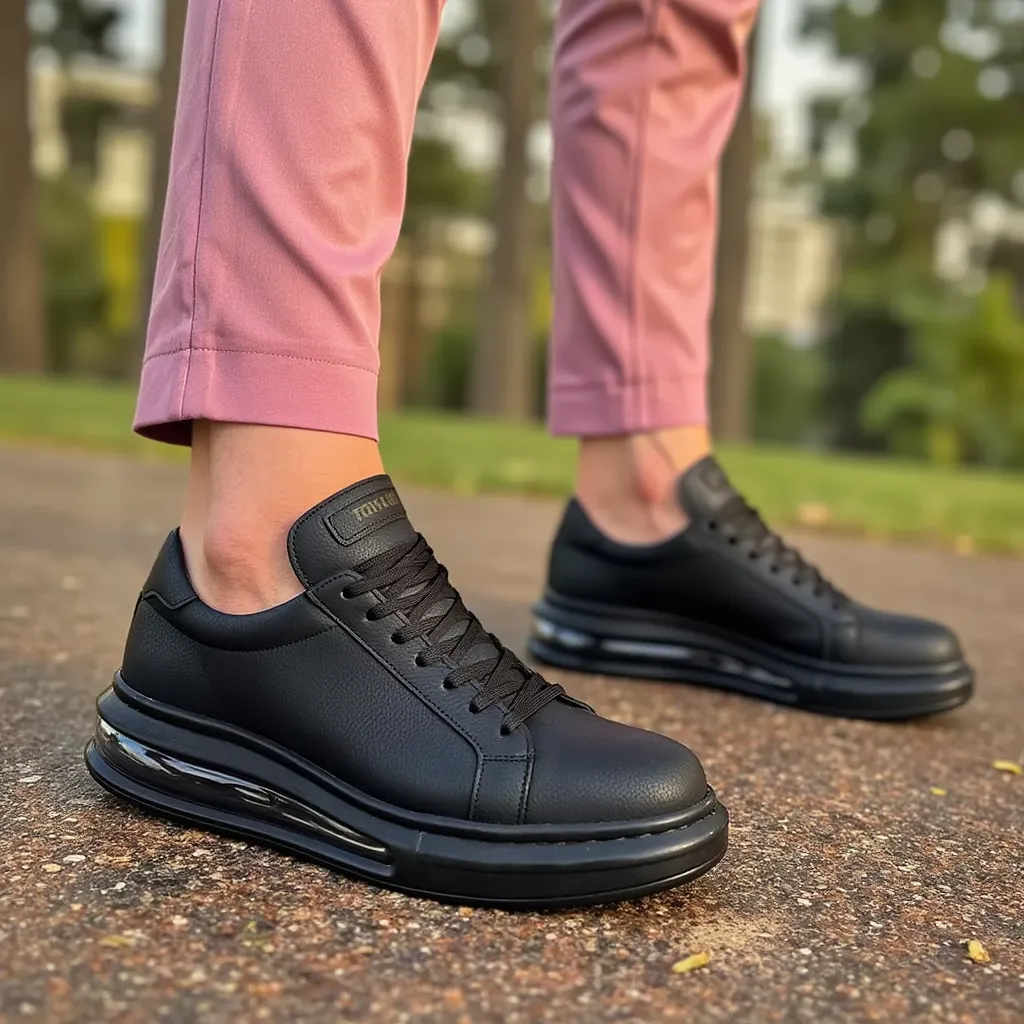
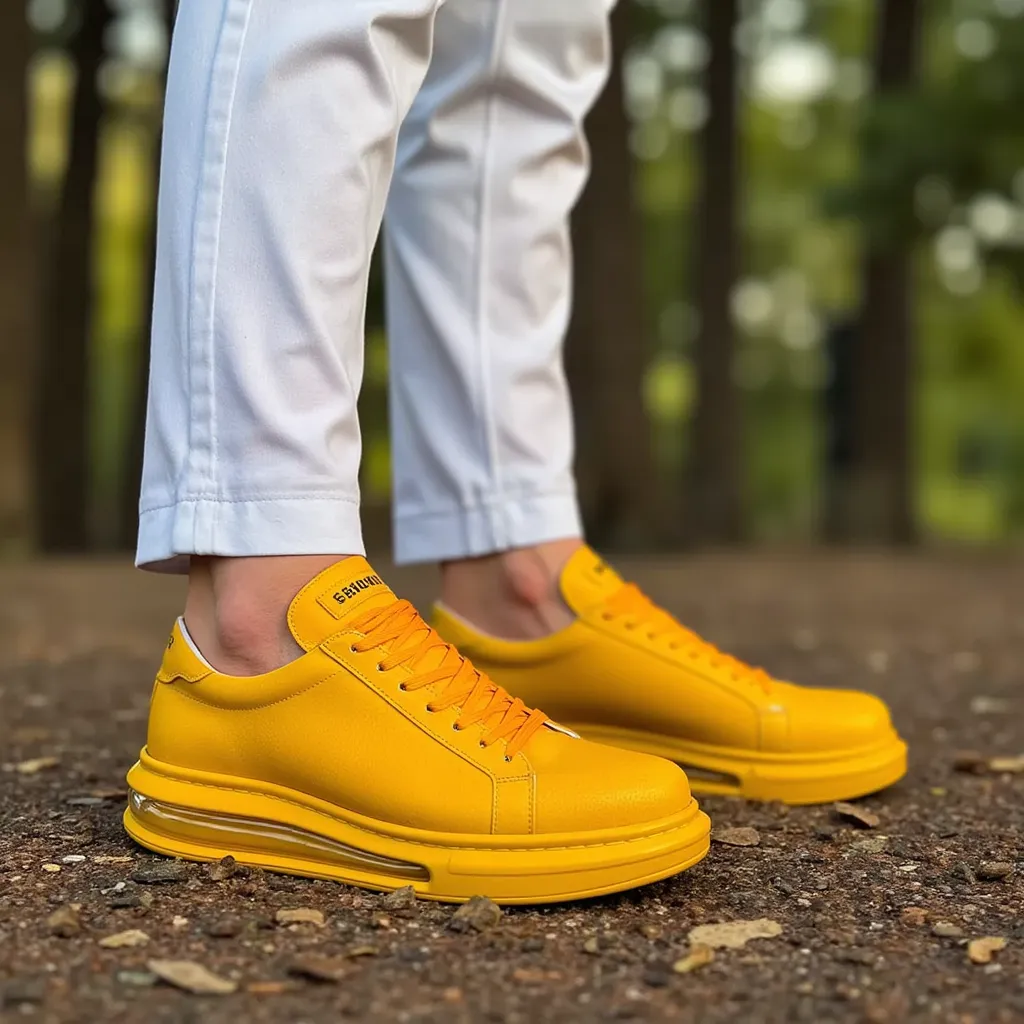
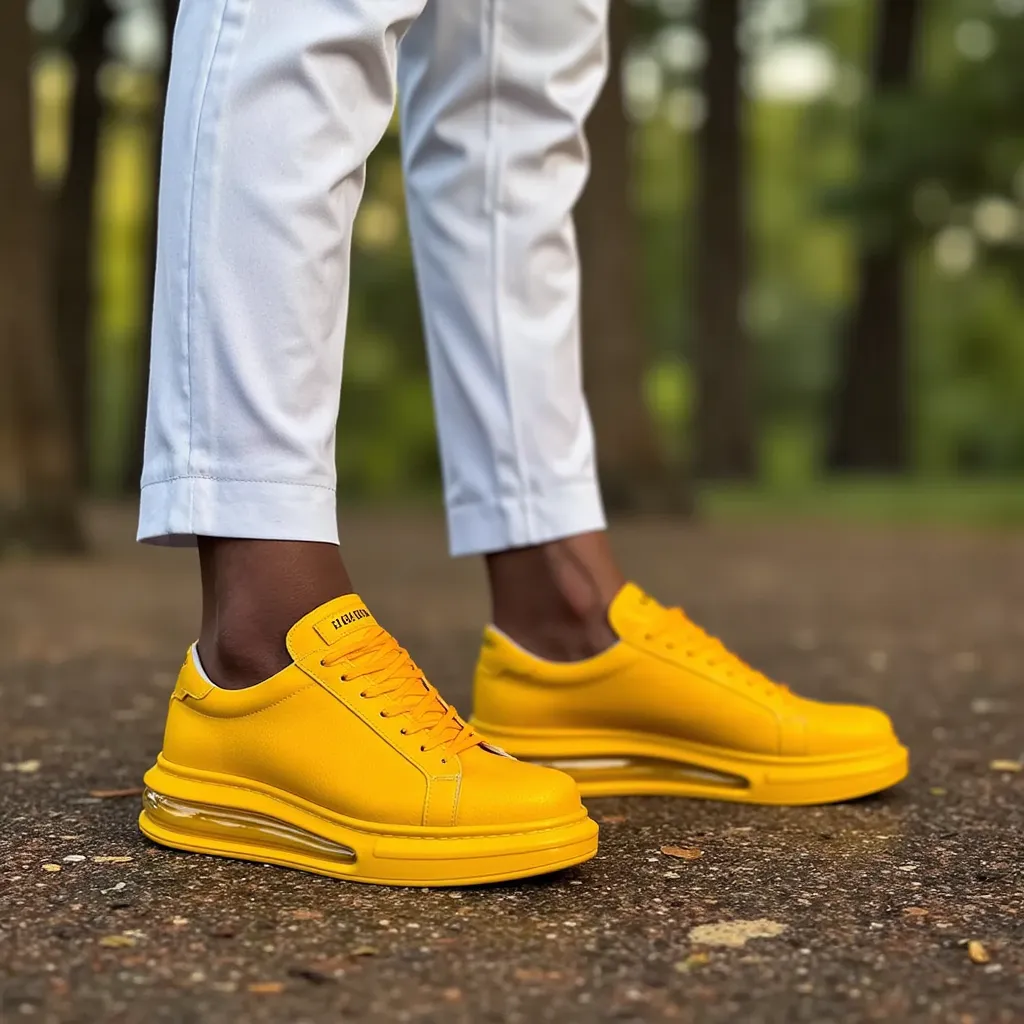
Step-by-step in Flow Studio
- Open the workflow — Go to Product Ad generator and open the template in Flow Studio.
- Add your product image — Replace the placeholder with your SKU photo.
- Optional model reference — Add a lifestyle image if you want a person; skip for product-led ads.
- Write a short brief — Structured notes, not a full prompt. Example: product “Vintage portable speaker”, color theme “Brown”, action “Reaching to adjust the speaker”.
- Generate the hero still — Run image generation and pick the scene that nails lighting and product dominance.
- Generate variants — Keep the same template; change only ratio, action, or seasonal palette.
- Optional short clip — Use the same references for a motion draft you iterate on—not necessarily a finished spot on run one.
Why this beats one prompt per creative
- Consistency: one prompt template drives the whole set.
- Faster iteration: change one field, rerun, compare.
- Less prompt debt: no pile of slightly different prompts nobody maintains.
- Path to motion: the same references can drive a short clip without restarting.
Common tweaks for ad-ready output
- Keep the product dominant in the foreground.
- One strong palette: primary theme color plus one accent.
- One action per scene—avoid clutter.
- Generate in the target ratio instead of cropping after the fact.
Limitations
- Plan a final pass for brand compliance (logos, claims, offers).
- Noisy or low-contrast SKU photos hurt results.
- Video is best treated as iterative drafts.
Related tutorials
Next step
Open the Product Ad workflow and run it once on a real SKU photo.